All guides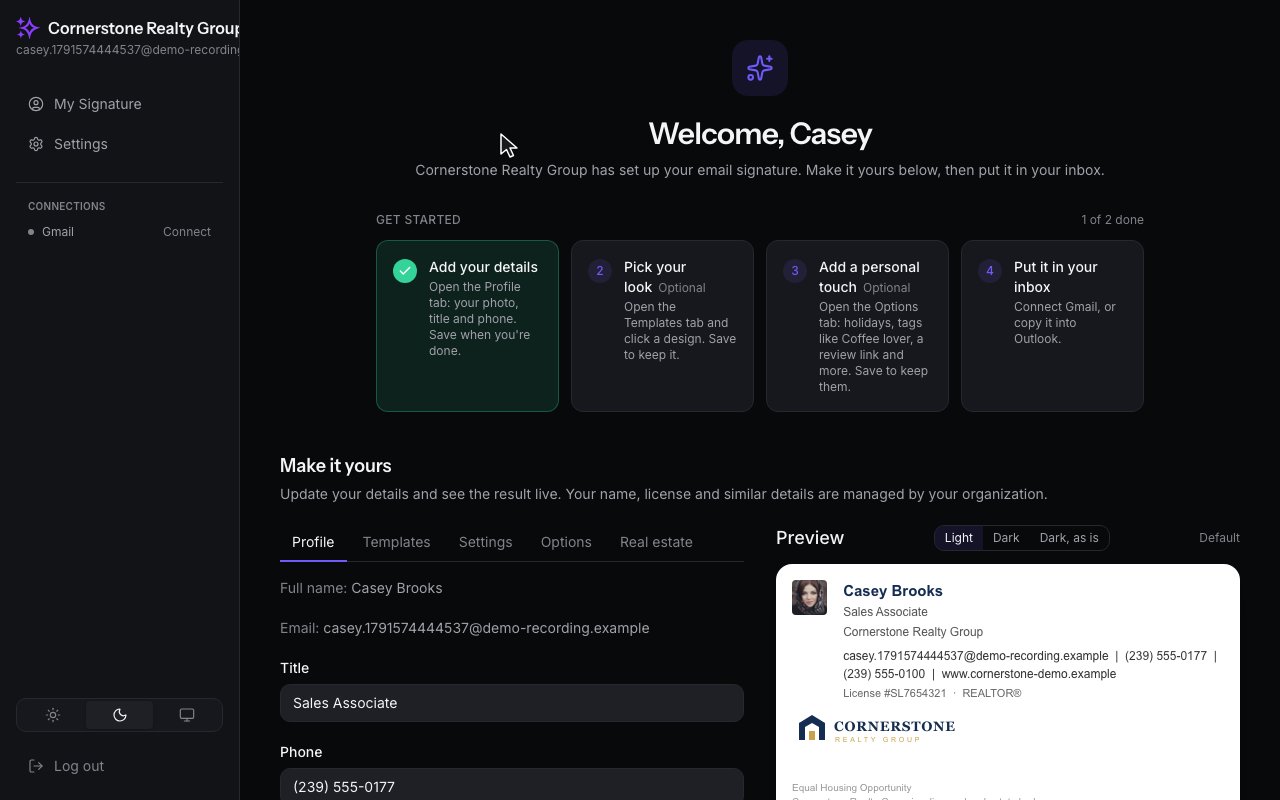
Getting Started · Members
Connect your Gmail signature
What you see on your invite link: your signature, a few things you can personalize, and the Connect Gmail button.
Step by step
1
This is your welcome page. Your organization has already built your signature, and there are four short steps: add your details, pick your look, add a personal touch, and put it in your inbox.
2
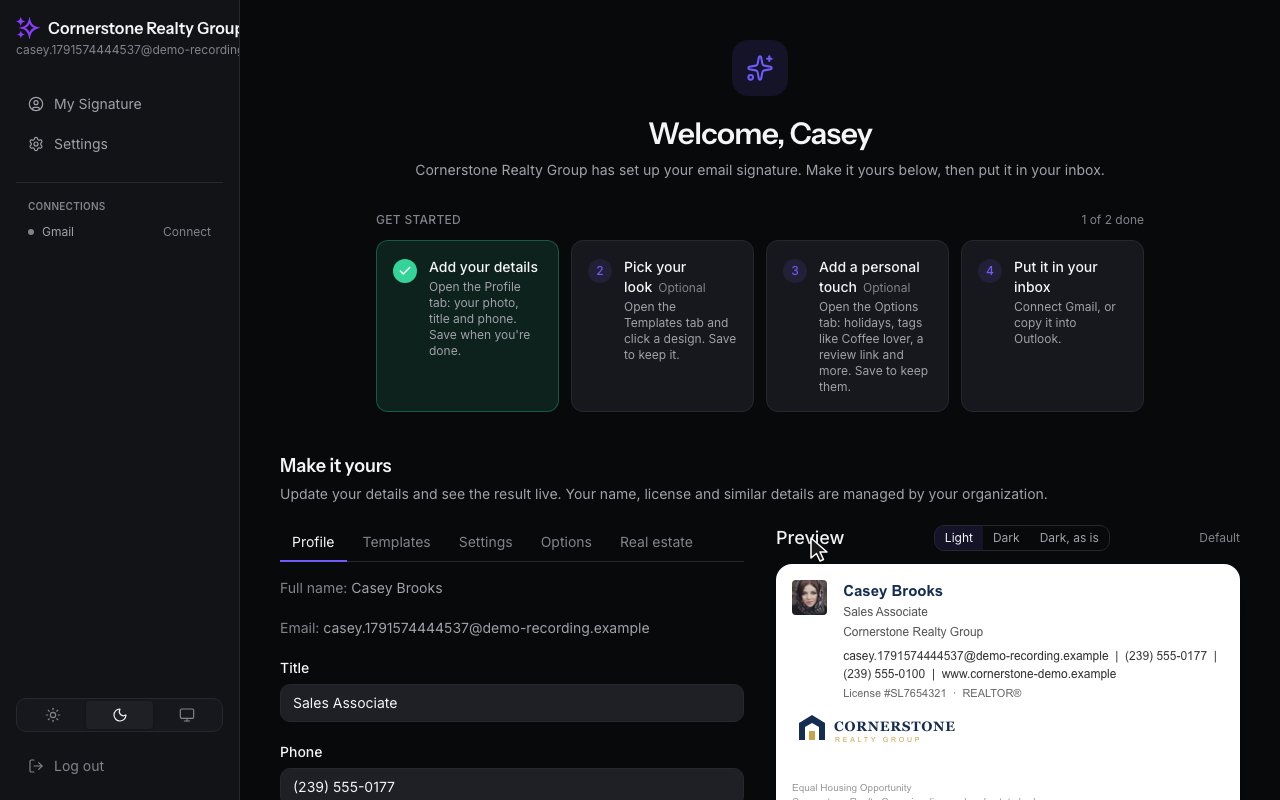
Under Make it yours, the preview shows exactly what the people you email will see.
3
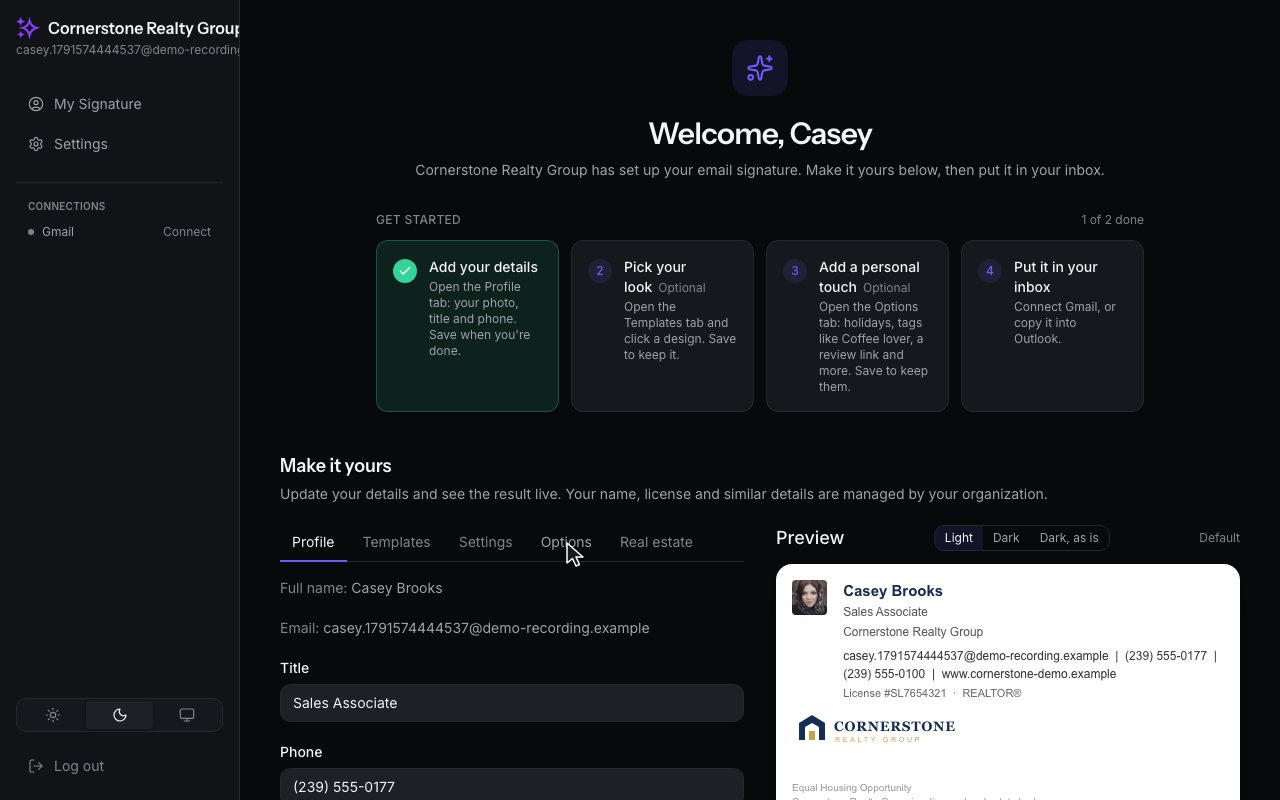
Open the Options tab to personalize the parts your organization allows.
4
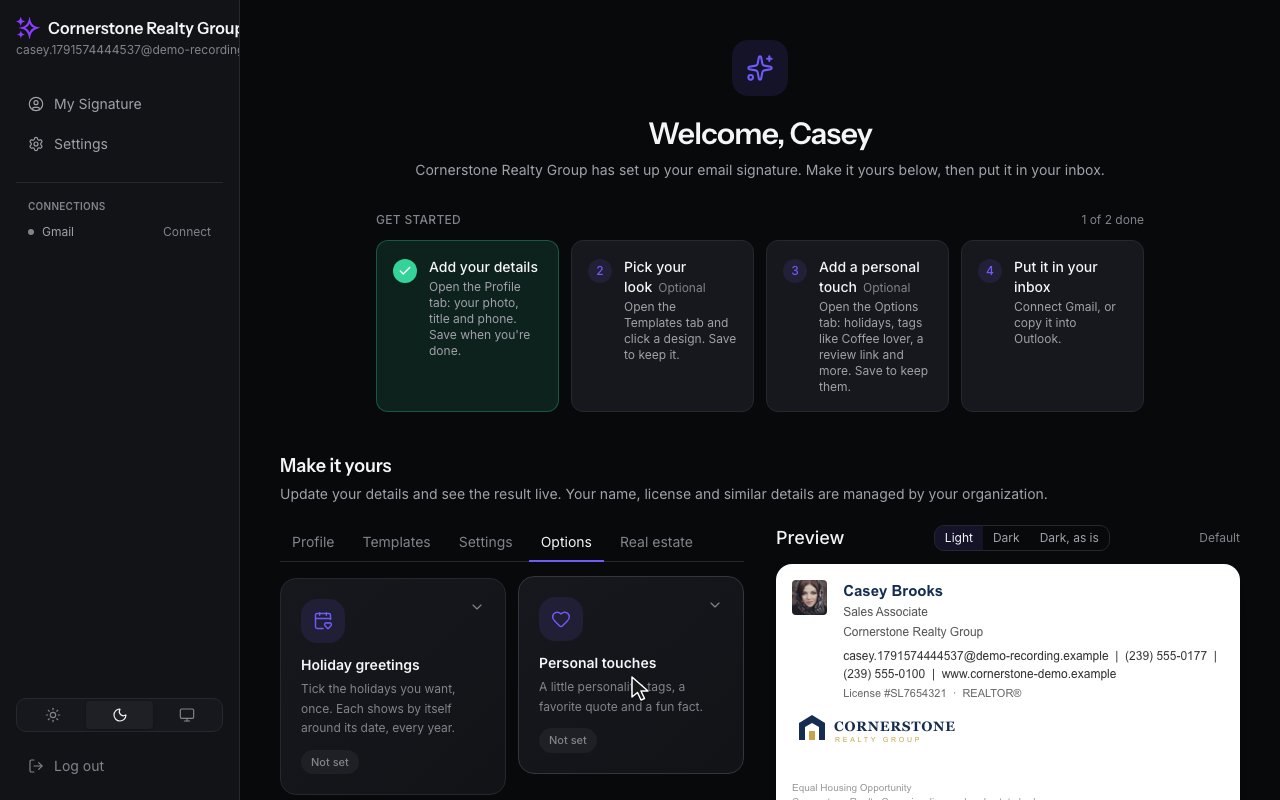
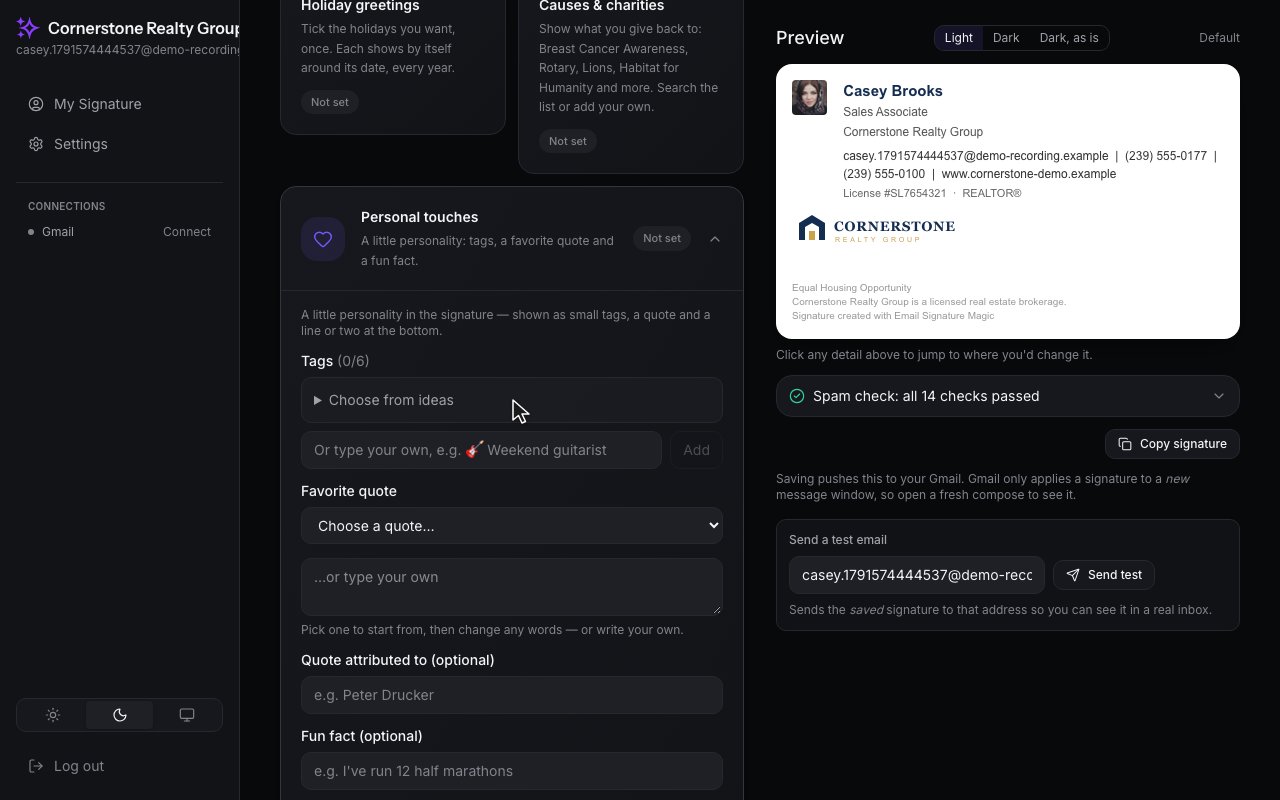
Open Personal touches and pick a tag or two.
5
Pick from the ideas, and the preview updates as you click.