Set up Email Signature Magic in Outlook and Microsoft 365
For brokerages and companies that run their email on Microsoft 365 (Outlook, with Teams for chat). Your IT admin installs a small add-in once. After that, every person's signature is added automatically to every new message, reply and forward — and when you change the design, it updates on their very next message.
Then up to a day for Microsoft to roll it out to everyone.
Someone who can open Integrated apps in the admin center (a Global Administrator).
New and classic Outlook for Windows, Outlook on the web, Outlook for Mac, and recent mobile apps.
Before you start
- Email runs on Microsoft 365 (Exchange Online) — not an email server your company runs itself.
- Everyone who should get a signature is a member in Email Signature Magic, with the same email address they sign in to Microsoft with.
- The design is how you want it. You can change it at any time without touching Outlook again.
Using Google Workspace for email and Teams only for chat? You don't need this — connect Gmail instead (see Getting started).
Add your people in Email Signature Magic
Open Members and add each person, or import a spreadsheet of them. The one thing that has to be exact is the email address: it must match the address they sign in to Microsoft 365 with.
Download the add-in file
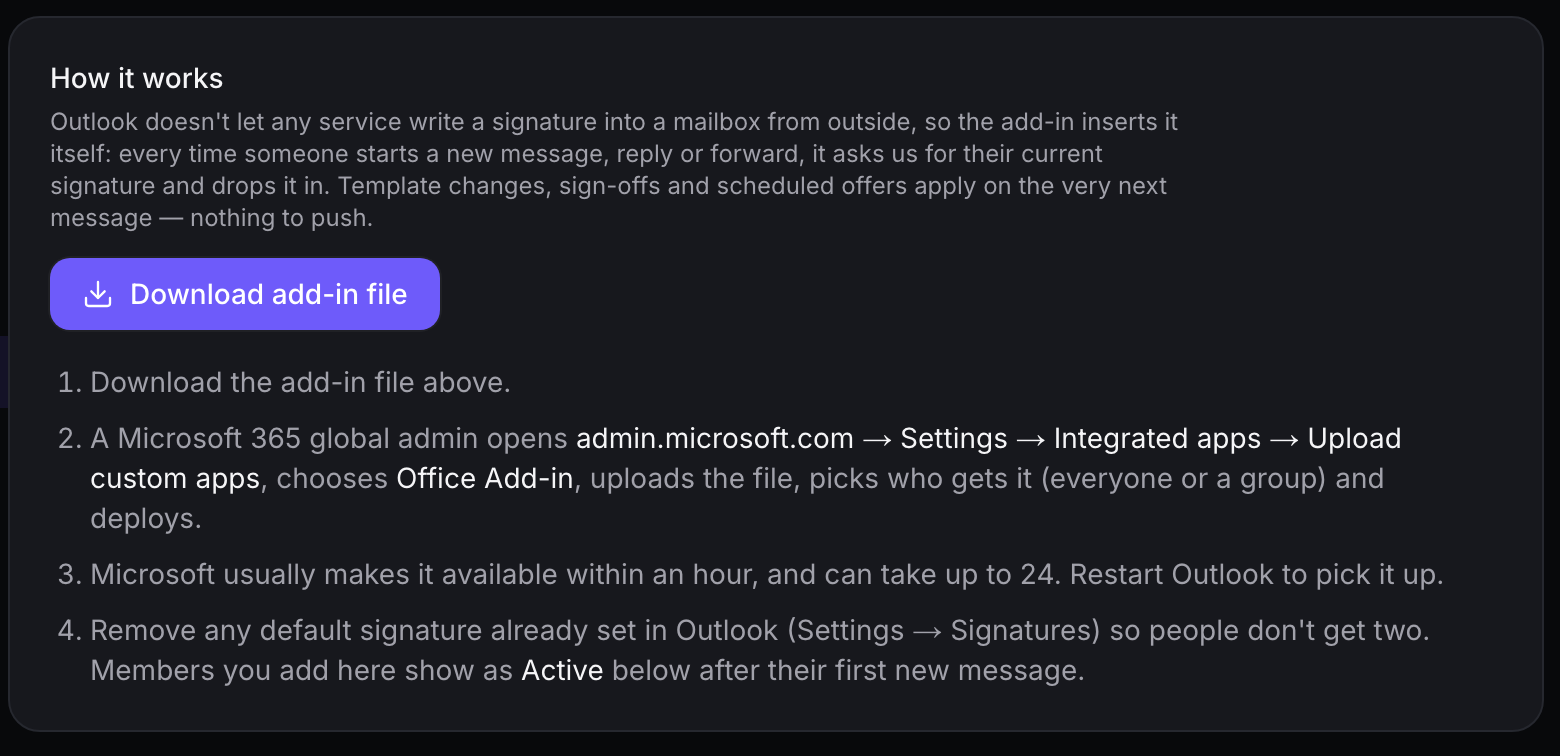
Go to Settings → Integrations → Microsoft Outlook and click Download add-in file. It's a small XML file. Keep it handy for the next step, or send it to your Microsoft 365 admin.
Your Microsoft 365 admin uploads it
This is done by someone with admin rights in Microsoft 365. Microsoft changes its screens now and then, so if a label differs slightly, look for the closest match.
- Sign in at admin.microsoft.com.
- Open Settings → Integrated apps.
- Click Upload custom apps.
- For app type choose Office Add-in.
- Choose Upload manifest file (.xml) from device and select the file you downloaded. Click Next.
- Choose who gets it: Everyone, Specific users/groups, or Just me. A good first move is Just me or a small group, then widen it once you've seen it work.
- Review the permissions (it asks only to sign people in) and click Deploy.
Wait a little, then restart Outlook
Microsoft usually has it ready within an hour, and can take up to 24 hours. Once it's there, each person should fully close and reopen Outlook. Nothing is installed on anyone's computer.
Remove the old Outlook signature
If someone already has a signature set in Outlook itself, they'll get two. Have them delete it, or set it to none for new messages and replies:
- New Outlook and Outlook on the web: Settings → Accounts → Signatures
- Classic Outlook for Windows: File → Options → Mail → Signatures
Check that it works
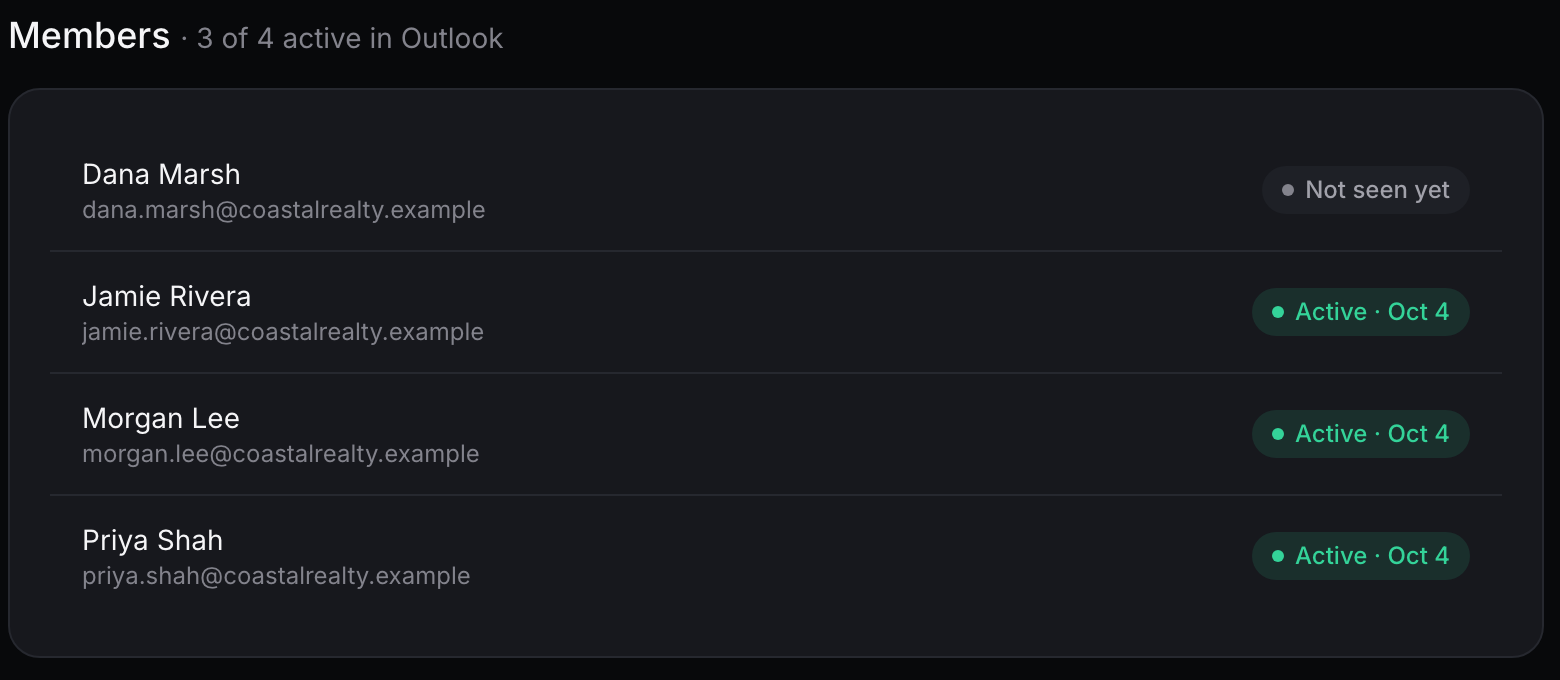
Start a new message. The signature appears at the bottom within a couple of seconds. It's added to replies and forwards too. Back in Email Signature Magic, a person's name changes to Active after their first message.
Using it day to day
For the people sending email
- Write email as usual. The signature is added for you on new messages, replies and forwards.
- If one is ever missing, open the message's add-ins (the Apps or … menu in the message toolbar), choose Email Signature Magic, and click Insert signature.
- Don't paste a signature of your own at the bottom — that would make two.
For whoever manages the signatures
- Change a template, a sign-off or an offer in Email Signature Magic. The next message anyone writes uses it. There's nothing to push or reinstall.
- Add a new hire as a member with their Microsoft sign-in address, and add them to the group the add-in was deployed to.
- Check the Members list now and then to see who's Active.
Questions and fixes
The signature doesn't show up on a new message.
Microsoft can take up to 24 hours to roll an add-in out to everyone, so give it a day after deploying. Then fully quit and reopen Outlook. If it still doesn't appear, check that the person is in the group you deployed to, and that the email on their member record is exactly the address they sign in to Microsoft with. Try Outlook on the web (outlook.office.com) first — it's the quickest to pick up a new add-in.
A person's name shows “Not seen yet” on the Members list.
It changes to Active the first time that person starts a message with the add-in running. Ask them to open a new message once.
The signature appears twice.
Outlook still has its own default signature. Remove it (step 5) so only the add-in's signature is added.
Someone signs in with a different address than their email.
The add-in recognises people by their Microsoft sign-in address. If it differs from the email on their member record (an alias, for example), nothing is inserted. Change the member's email here to match their sign-in address.
Does it work in Teams?
Signatures only apply to email, so Teams chat messages don't have one. Teams is fine to have alongside the add-in; it just isn't affected.
What about phones and tablets?
Recent versions of the Outlook mobile apps run the add-in. Older ones don't, and those messages go out without it. Test with one phone before you rely on it.
How do I remove it?
In the Microsoft 365 admin center go to Settings → Integrated apps, open Email Signature Magic and choose Remove. Signatures stop being added on the next message.
What can the add-in see?
It signs in as the person writing the message and asks us for their signature. It uses only the basic openid and profile sign-in permissions — their name and sign-in address. It does not read, send or store any email.
We'll walk your admin through the setup, or do the first test with you. Send us a note and we'll get back to you.